
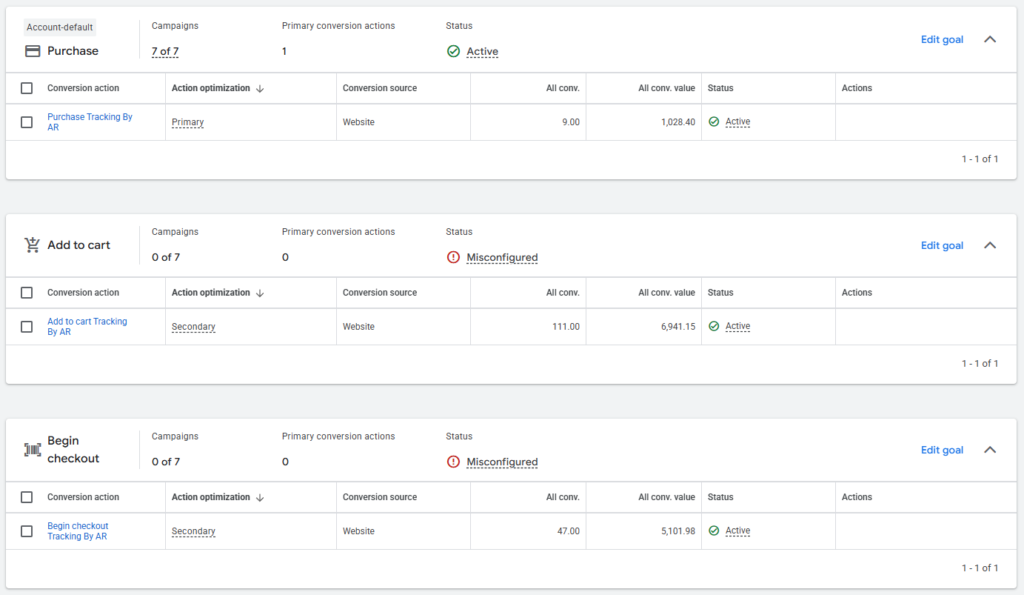
Accurate conversion tracking helps you understand which Google Ads campaigns drive sales. But browser-side tracking alone may miss some conversion data because of browser restrictions, ad blockers, or consent settings.
In this Video, I’ll show how I configure Google Ads Enhanced Conversions with browser-side and server-side tracking using Google Tag Manager (GTM) to send more complete conversion data.
How to setup Google Ads Enhanced Conversion Tracking with Server Side? Check this Video
How It Works
Browser-side: Shopify data layer → GTM Web → Google Ads and GA4.
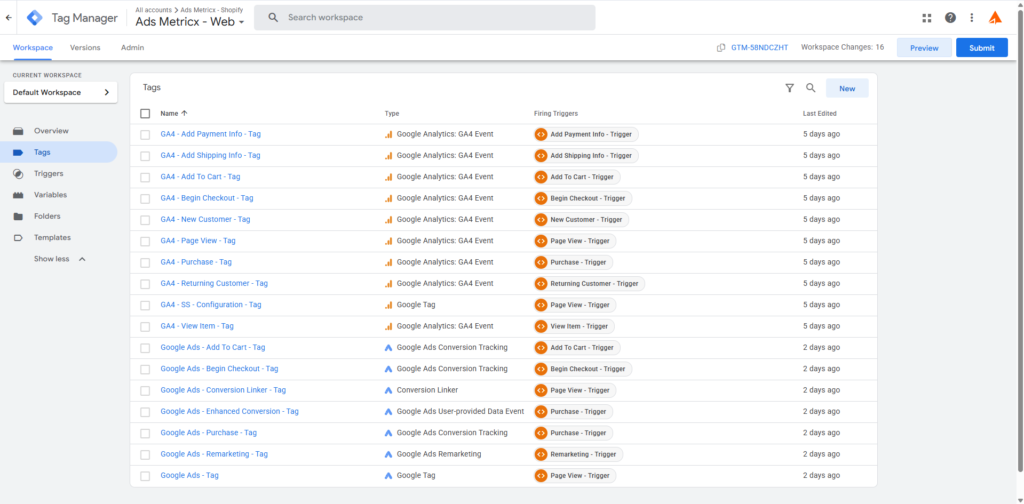
Server-side: GTM Web → Stape.io → GTM Server → Google Ads.
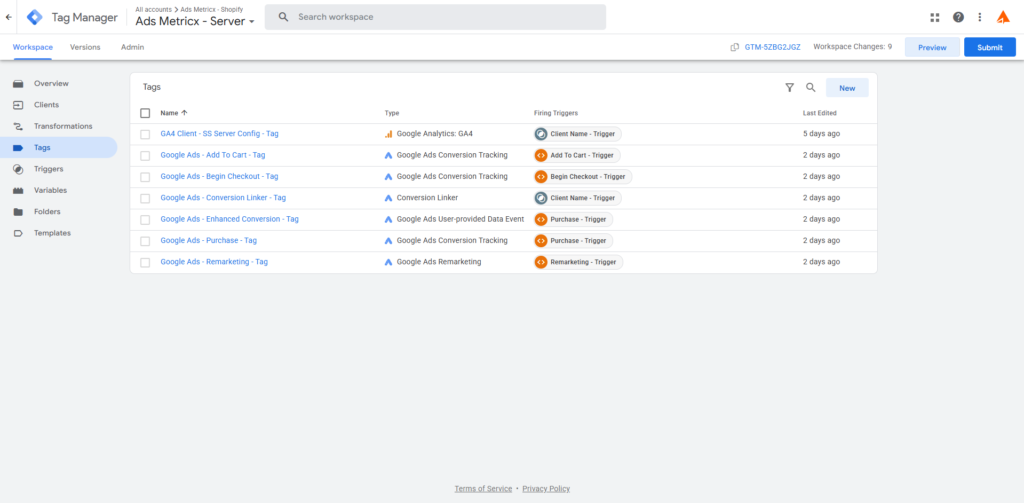
This setup helps manage ecommerce events and customer-provided data for conversion measurement.
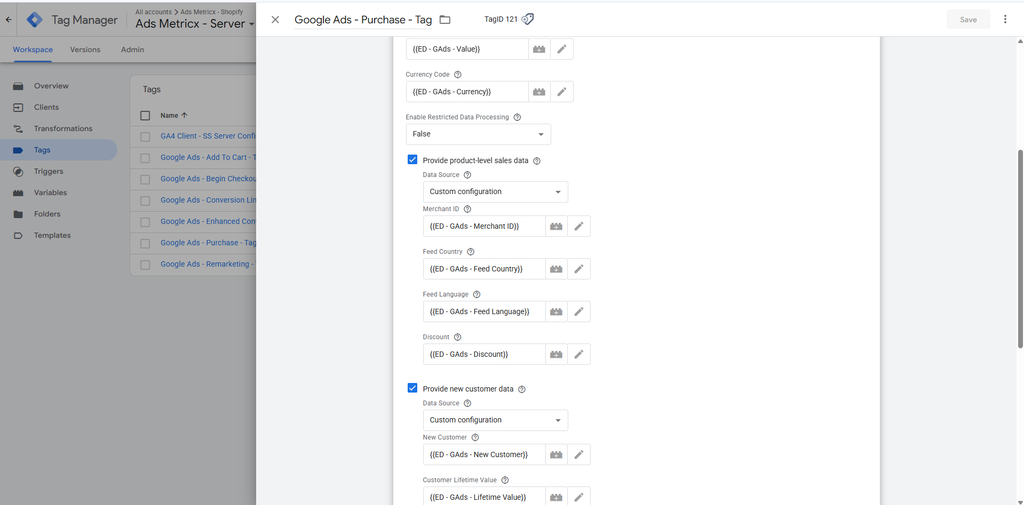
Google Tag manager – Browser Side – Google Ads Purchase Tag
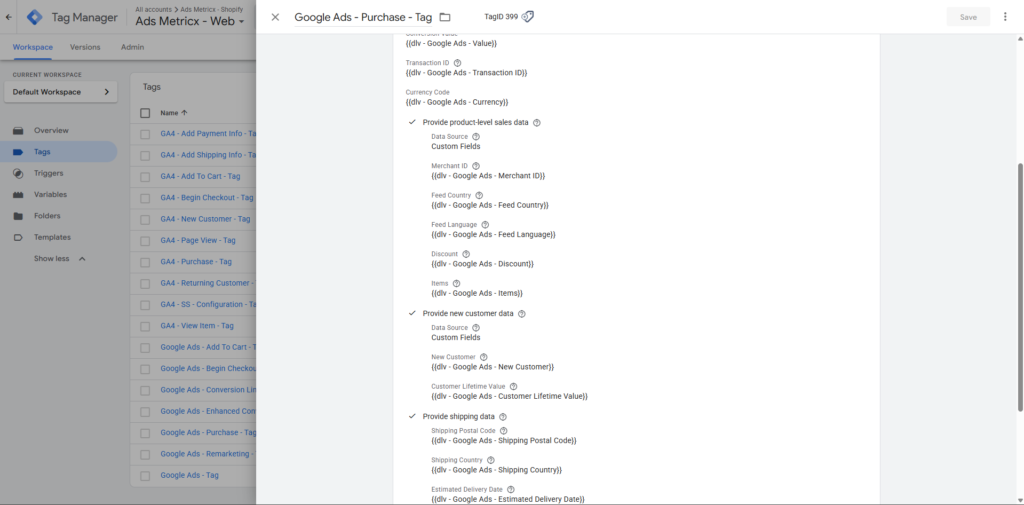
Google Tag manager – Server Side – Google Ads Purchase Tag
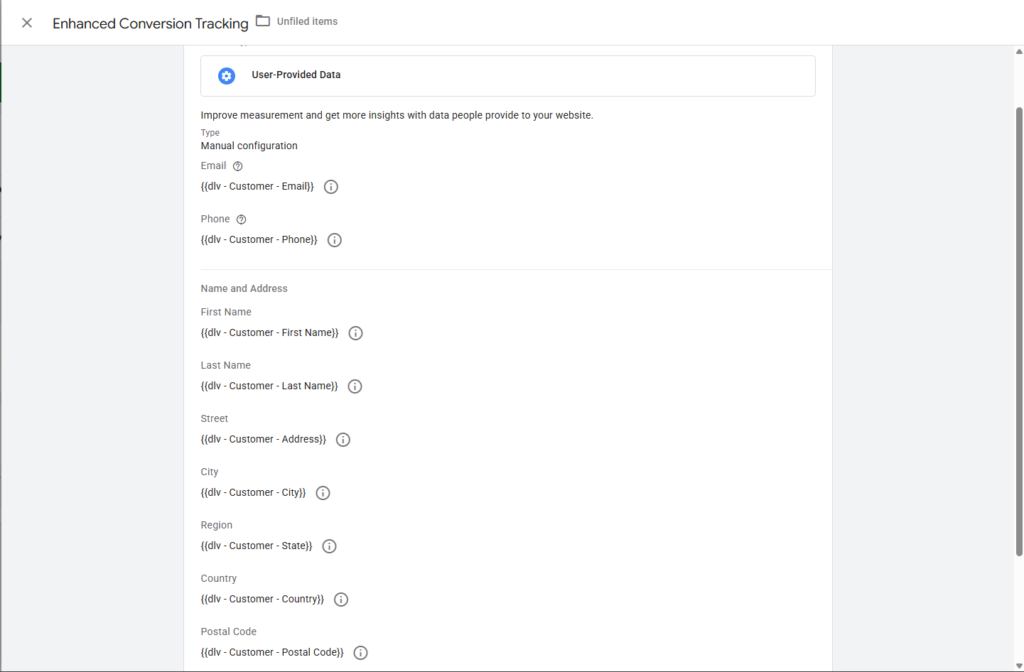
Google Tag manager – Browser Side – Enhanced Conversion Tag
Test Your Tracking
Before publishing, use GTM Preview and server-container debugging to verify that:
- Purchase fires only as intended.
- Transaction IDs, values, and currencies are correct.
- Add to Cart and Begin Checkout fire at the right time.
- Enhanced Conversion data is mapped correctly.
- Server-side events reach Google Ads as expected.
In my configuration, Purchase is active as a primary conversion action, while Add to Cart and Begin Checkout are secondary.
Need help fixing Google Ads conversion tracking or implementing server-side tracking for your Shopify store?
Work with me: https://adsmetricx.com/contact/
If you’d like to work with me on Fiverr, check out my profile here: View My Fiverr Profile