
Google Ads Enhanced Conversions Setup for Purchase: Complete GTM Guide (2026)
A client emailed me last spring with a screenshot and one line: why is it buying garbage clicks? Their tROAS target was sensible. Their budget was fine. Their products sold well. Smart Bidding was just making decisions that made no sense.
It took about twenty minutes to find. Conversions were firing, and they were empty. No customer data attached to any of them. Google was being told a sale happened and nothing else, then asked to find more people like the buyer. Of course it struggled.
Here’s the exact setup I used to fix it, the same one I run on client accounts every week. By the end, 100% of their purchases were sending full match data.
What Enhanced Conversions actually does
When someone buys, Enhanced Conversions sends their email, phone and address to Google alongside the conversion. Everything gets hashed with SHA-256 in the browser first, so no raw personal data leaves the page. Google matches those hashes against signed-in accounts and recovers conversions cookies would have lost: the person who browsed on their phone and bought on a laptop, the Safari user, the one who cleared cookies between the click and the checkout.
You’re not adding conversions that never happened. You’re getting credit for the ones you already earned.
Step 1: Get the customer data into the dataLayer
Enhanced Conversions can only send what it can see. Your confirmation page needs to expose the buyer’s details at the moment the purchase event fires. This is the shape I use:
dataLayer.push({
  event: 'purchase',
  transaction_id: 'ORD-10482',
  value: 129.90,
  currency: 'EUR',
  customer_data: {
    email: 'customer@example.com',
    phone_number: '+33612345678',
    address: {
      first_name: 'Marie',
      last_name: 'Dupont',
      street: '12 Rue de la Paix',
      city: 'Lyon',
      region: 'FR-69',
      postal_code: '69002',
      country: 'FR'
    }
  }
});
On Shopify this comes from a custom pixel or checkout extensibility. On WooCommerce I pull it off the order object on the thank you page. The platform changes, the rule doesn’t: real values, on every single order, and phone numbers in E.164 format with the country code. A phone number without the country code matches nobody, and you’ll never get an error message telling you so.
Step 2: Build the User-Provided Data variable
In GTM, create a new variable and pick the type called User-Provided Data. Set it to Manual Configuration, then map each field to a dataLayer variable built from the keys above. Email points at customer_data.email, phone at customer_data.phone_number, and each address field to its own path.
Name it something you’ll recognise at a glance, like UPD – Purchase Customer Data. You’ll attach this one variable to your conversion tag next.
Step 3: Attach it, then flip the switch inside Google Ads
Open your Google Ads purchase conversion tag in GTM, tick Include user-provided data from your website, and select the variable you just made. Save it, and check the tag still fires on your purchase trigger only.
Now the part people forget. Go into Google Ads, open the conversion action itself, and turn Enhanced Conversions on with Google Tag Manager selected as the method. The tag can send data all day, but if the conversion action isn’t set to accept it, nothing happens. I’ve audited accounts where the GTM side was perfect and this one checkbox was off for months.
Step 4: Verify it like you do not trust it
This is where I spend most of my time, and it’s the step that separates a setup that works from one that looks like it works. A green tick in the interface is not verification.
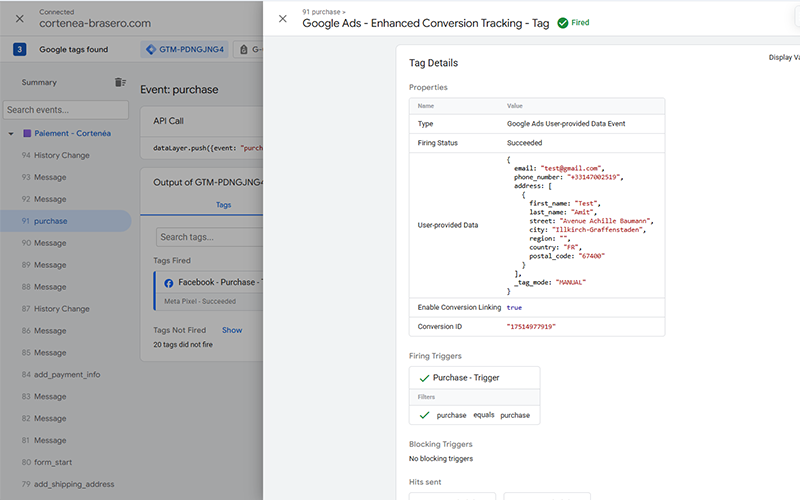
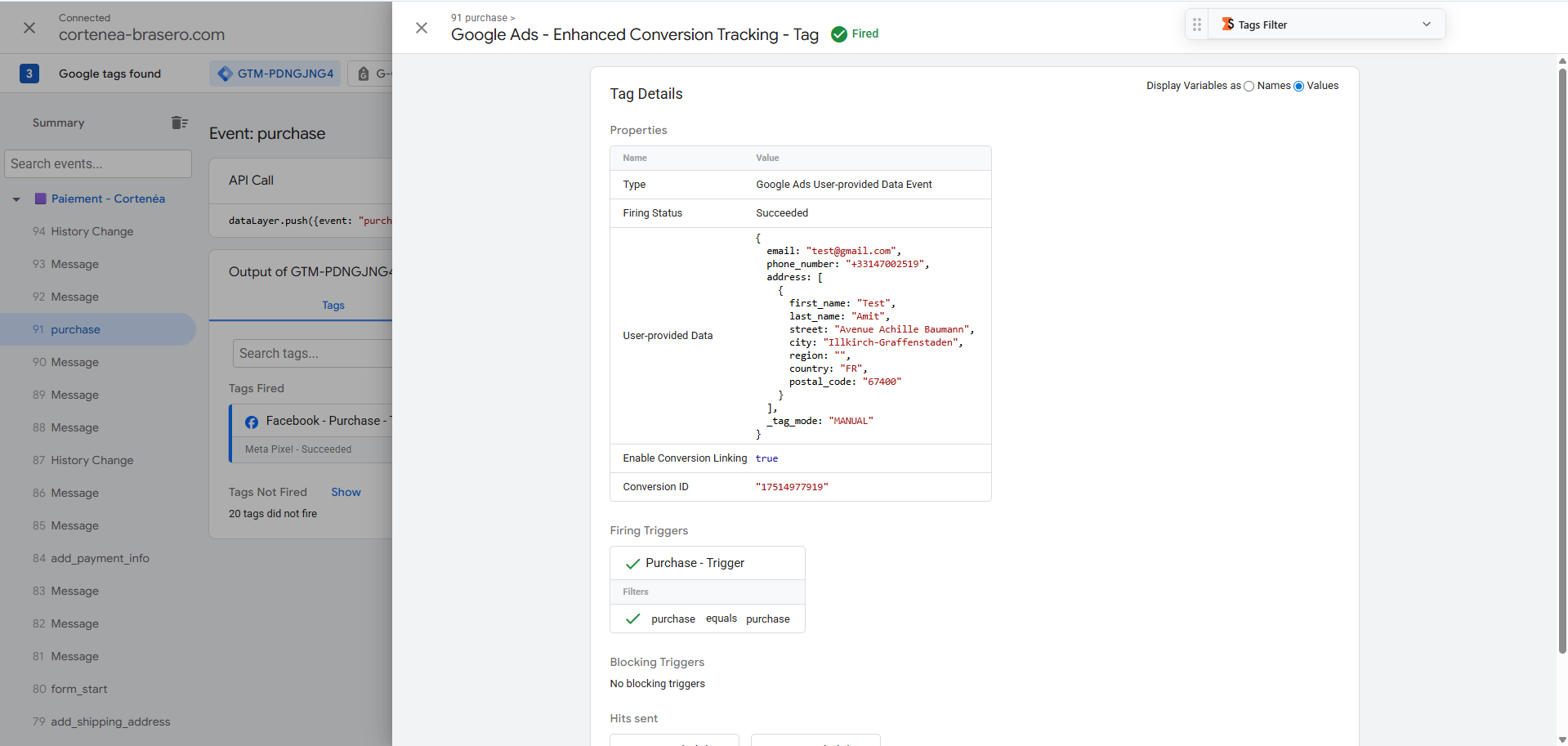
First, preview mode. Make a test purchase, open the conversion tag in the debugger, and look at the payload. You want the user_provided_data block sitting there with every field populated. If email is present but address is empty, your dataLayer paths are wrong, and you’ve just learned that before your client did.
Then place a real order with a real email and phone. Watch the request go out to googleadservices and confirm the hashed data rides along with it. Then wait three or four days and open the diagnostics tab on the conversion action. Google will tell you whether it’s receiving the data and how well it’s matching.
What changed for the client
Every order now goes out with full match data. Not most of them. All of them. Within a few weeks the diagnostics confirmed it, cross-device purchases started showing up in the reporting for the first time, and the ROAS in the account finally matched what they were seeing in their own backend.
Smart Bidding didn’t get smarter. It just stopped guessing.
Enhanced Conversions won’t rescue a bad offer or fix boring ads. What it fixes is the data underneath the bidding, and in 2026, with cookies weaker every quarter, that isn’t optional anymore.
If you want a second pair of eyes on your setup, send me a message. I’ll look at your account and tell you what’s missing before we talk about anything else.